Which resume template should I choose?
Choose the layout that makes your relevant experience easy to find at a readable size. Start with a restrained design, insert your real content, and inspect page breaks before deciding. No template guarantees a hiring outcome.
Harvard's resume guide recommends consistent formatting, readable spacing and headings ordered by importance. That supports the comparison criteria below; it does not endorse any particular ResumeForU template.
Compare the five layouts
| Template | Distinctive features | Consider it when | Check before sending |
|---|---|---|---|
| Classic | Serif typography, ruled headings and dated entries | You prefer a traditional document | Long role titles beside dates |
| Modern | Sans-serif type, centered header and two-column skills | You want a contemporary style | Reading order of the skills area |
| Minimal | Monochrome, no icons; skills and projects appear early | You want project evidence near the top | Whether long projects push experience down |
| Professional | Icon headings and skills badges | You need clear separation between roles and skills | Badge wrapping with a long skills list |
| Elegant | Serif text, colored header band and two-column skills | You want an editorial appearance | Grayscale legibility and skills reading order |
These are design suggestions based on the templates, not evidence that particular employers prefer them.
See two template previews
These are the Classic and Minimal preview images supplied with ResumeForU's template gallery. They use the same fictional finance applicant so you can compare the visible typography and section placement. Names, employers, credentials and results are sample content, not customer evidence. They are gallery examples, not fresh exports of your resume.
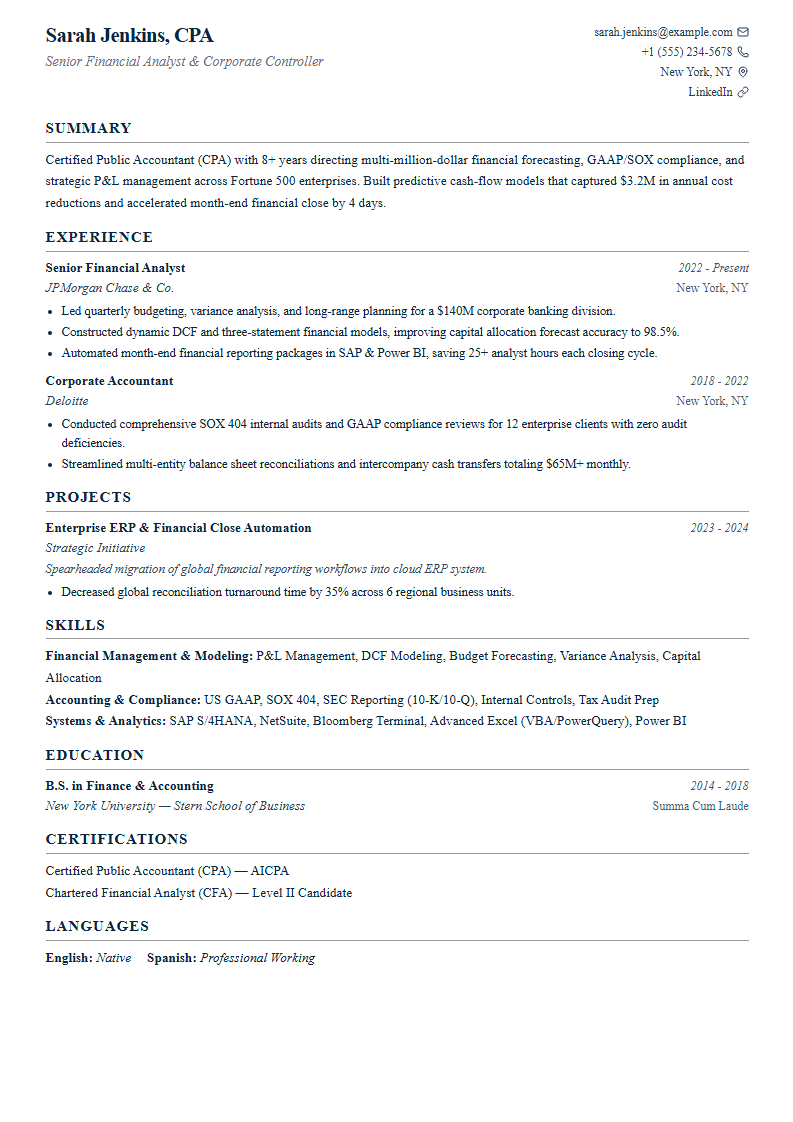
Classic: the preview places employment evidence before projects and skills. Open the Classic template.
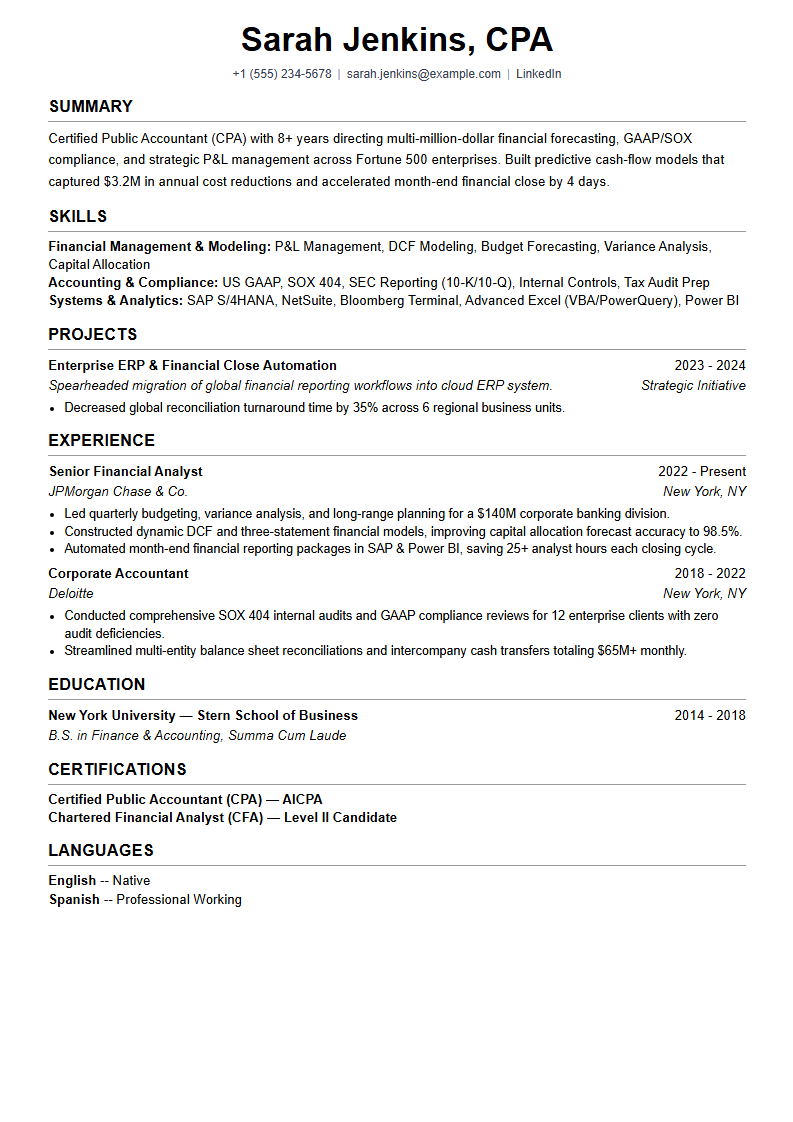
Minimal: the preview brings skills and projects earlier. Open the Minimal template.
The section order shown is a starting arrangement. You can customize section order in the builder; inspect the order actually saved in your draft rather than assuming a template always uses the sequence in its thumbnail.
Early career: show the work you have
Use internships, relevant projects, volunteering or supervised placements. Label them accurately. Do not stretch a small amount of content with oversized headings, and do not invent employment to fill a template. A concise page is a useful starting point, not an absolute rule.
The student sample and graduate software engineer sample use Minimal to make project evidence prominent. The graduate nurse sample uses Professional for clearly separated placements and credentials. These are starting points for comparison; inspect your actual section order and credential status after export.
Experienced applicants: prioritize relevance
Give your strongest recent work more space than older unrelated roles. If a second page is needed, use it for useful evidence rather than shrinking the type. Check where entries break across pages.
The senior software engineer sample uses Classic and puts the emphasis on recent technical ownership. The project manager sample offers another dense employment history to inspect. Long role names beside dates need checking regardless of profession.
How do I compare density with my real content?
Use the same draft in two layouts, including your longest role title, all required credentials and a representative long bullet. Compare at normal reading size rather than judging only the thumbnail. More words fitting on one page is not automatically a better result.
| Content pressure | Compare first | What decides the choice |
|---|---|---|
| Several long skill names | Professional badges against Classic text groups | Wrapping and the space left for relevant experience |
| Substantial projects plus employment | Minimal against Classic | Whether the earlier projects help your application or delay stronger work evidence |
| Long role titles and dates | Classic against another layout you prefer | Legible title/date boundaries without dropping necessary detail |
| Printing or copying text | Elegant or Modern against Minimal | Grayscale contact legibility and sensible skills reading order |
This is a content comparison, not a measured capacity ranking. Page count changes with your text, density and spacing settings. Shorten repetition and unrelated material before reducing type size. If the document still needs two readable pages, preserve the useful evidence and inspect the break between them.
Career changes: explain the connection
A short summary can connect prior work to the new role. Follow it with evidence: customer support can demonstrate communication, a completed project can demonstrate a technical skill, and volunteer coordination can demonstrate planning. Keep dates and job titles clear.
Check the output, then choose
Before committing to an editor, compare free exports, subscriptions and one-time purchases. If Teal is on your shortlist, our ResumeForU versus Teal comparison separates export formats from job-search features. Choose a layout and payment model that meet the same application requirements.
Preview your real content in two layouts. Compare readability, page breaks and the order of copied text with the worked export check. Follow the employer’s format requirements and check the final file. You can switch ResumeForU templates without retyping your content.